Licence registration
The UPDD driver is licensed software. An unlicensed driver will run in evaluation mode which comes with certain restrictions until it is licensed via a registration process.
For unlicensed drivers that include the UPDD Daemon menu you can use the Register option to register the driver, as seen below:
The UPDD Daemon menu icon is found in the macOS menu bar or the Window/Linux system tray.
standrd| Windows | MacOS |
  |
 |
If the UPDD Daemon menu is not available, then you can use the Register option of the command line interface.
'Register' is not shown if the driver is licensed because:
- You have been supplied a full production, pre-licensed version of the driver
- The supplied driver has automatically claimed a pre-allocated licence from our on-line licence server
- The driver has been previously manually licensed on the system.
There are two main register options, the standard default method that uses a Licence key and a specialised one uses a Registration key. The software will be pre-configured to select the relevant registration method.
Master Registration key method
For some pre-licensed software a Master registration key is issued that can be used to license the software as described here.
A master key typically looks something like this 'Pb1JCVXD+ILBNgYgaWDZjySBS0y4G7eLx4DbcNcddbZ=' and is used in specilist builds.
Standard licence key method
This is the most common method of licence registration.
In most cases you will have a licence key to enter into the software within this dialog (macOS example)
Please note. Since July 2026 we implemented a new and more secure licence server. As a consequent of this change, licence keys have changed format from 13 numbers, starting with a 5 or 6, to keys starting with UPDD-NNNNN-NNNNN etc. Old licence keys now have an equivalent new format replacement. Old licence keys can no longer be used. This change and how to manage your old / new keys is described in detail here.
Please also be aware that new key format is only accepted in software build 7.1.228 and above. To use the new keys in older versions of the software you need to download and and run the UPDD Licence tool
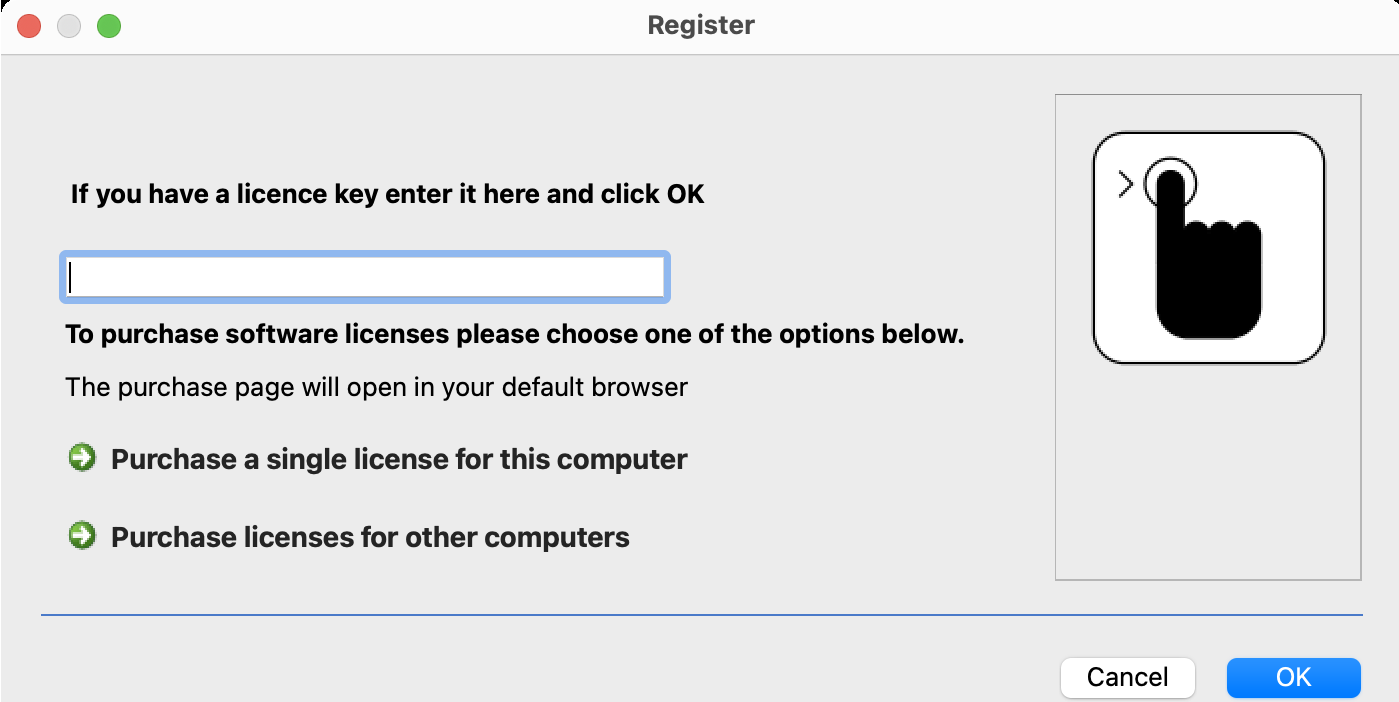
If you do not have a licence key, you can use one of the purchase options to purchase a key. This will load our standard purchase page within your Browser.
Enter the licence key to licence the software.
Entered licence keys are validated online with our licence server. If your system is offline follow the offline instructions.
Some driver builds are pre associated with licence keys held in our licence server. The software can be set to automatically claim one of these associated licences or manually invoke the claim. The Claim option will only be shown for software builds configured to 'manually' claim a waiting key.
Registering UPDD contacts our licence server, so if the system is behind a firewall, proxy or other security layer, please allow outbound HTTPS (TCP port 443) to license.touch-base.com. Allowing the domain name is preferred; if your policy requires an IP address, it is currently 109.104.126.90. If your security procedures do not allow this, use the offline option. When UPDD cannot reach the server it shows either a web address or a request code beginning TBOFF1. On any computer with internet access, open that address, or go to https://license.touch-base.com/licence/offline and paste the request code, then click "Get response code". Enter the response code back into UPDD on the original computer.