System and driver configuration
These parameters are passed to upddutils to list system and configuration information:
| Parameter | Description/Output |
| adddevice <id> [name] | Adds a device instance for a supported pointer device with the given id. If specified the name must be quoted if it contains spaces. If not specified the standard default device naming is used. Add a SIS,10 Touch, USB as listed with device id 4 in supported devices. upddutils adddevice 4 “new usb device name” Add a SIS,10 Touch, USB keeping the same name. upddutils adddevice 4 |
| bootlog [on/off] |
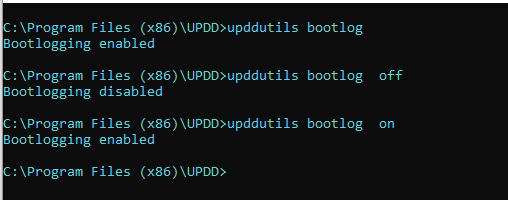
Requests the driver enable/disable debugging. With build 6.0.644 logging change is effective immediately. With previous releases it is at system startup. Defaults to 'on' if no parameters are passed. In some situations we need to run driver debugging during system startup in which case we need to flag to the driver to enable debug logging during system restart: Remember to disable boot logging once no longer required!!!!
The resultant log files are described here. Notes:
|
| connections | For each USB device shows the physical port connection details: For each device instance it lists USB vendor, product id and location information. |
| deldevice handle | Delete a supported device, associated with the device handle, from the UPDD configuration. Normally used to delete non active devices, seen as NOK in the UPDD Status dialog. If an active device is deleted it will be automatically added on driver restart or when it is next discovered by the system and passed to the handling driver.
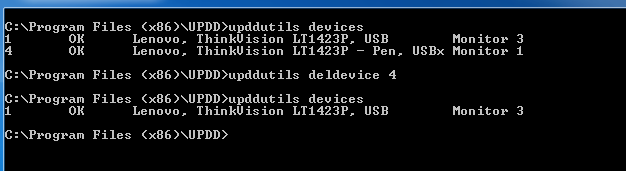 |
| devices | Lists UPDD devices being handled / monitored by the driver. Lists for each device: Internal UPDD device handle ID / state / device name / desktop association This example shows a system with 2 active (OK) touch devices 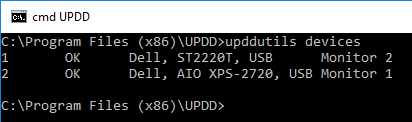 |
| diagnostics diag |
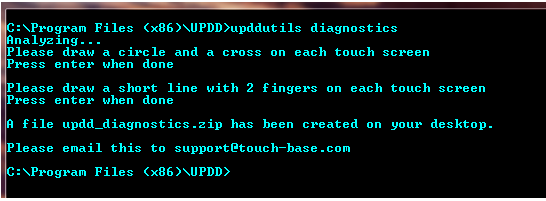
Invokes a diagnostics procedure to capture data for support purposes. This procedure is usually invoked from the UPDD Console dialog, General tab but should this method not be available, such as running UPDD on an operating system whereby the GUI interface is not available, then this method can be used. Below is an example of running the command in a Windows CMD window. Under Mac it would be run in a Terminal window. |
| dumpsettings | This setting is no longer available and has been replaced by the import / export function. Extracts the UPDD settings in an SQL format and writes to a file. By default the file will be named updd_dump.sql and located in the updd data folder as in the first of the examples below:  Settings backed up in the manner can be restored by the loadsettings option. |
| export <devices> <names> <target file name> |
Introduced with UPDD 6.0.460 onwards, exports UPDD settings to an external file as described here. |
| filedebug {0 | 1 | 2 | 3} |
Used to configure UPDD debug options. When set to a value other than zero causes all UPDD managed debug output to be written to a file. The value 1 – 3 is used to set the “debuglevel” option to select the amount of information output. 0 – no debug messages Note that level 3 implements logging in time critical code and can therefore negatively affect the performance of the software. The debug setting is effective for the lifetime of the executing driver process; if the driver process is restarted the level is reset to zero.
In all operating systems except Windows CE the output will be written to <USERS DESKTOP>/updd.log. In Windows CE output will be written to \application data\updd\updd.log Typical UPDD.log file debug content (in this case set to 2): 2016/04/12-15:40:44: DBG: Found VID:0x4f3 PID:0x13e |
| hardreset | UPDDV7 only. Removes and reinstates all drivers. Mainly available for troubleshooting purposes to aid debugging of touch issues. |
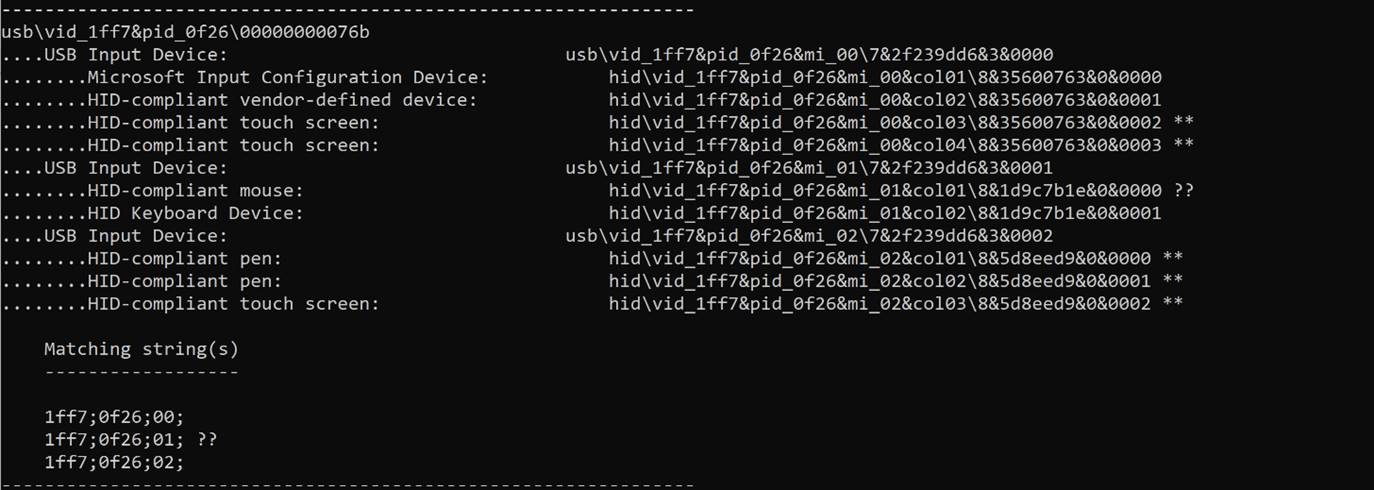
| hiddevices |
See alos usbdevices for a list of non hid devices. |
| Import <source file name> |
Introduced with UPDD 6.0.460 onwards, imports the settings previously exported with the export function as descibed here. |
| loadsettings | This setting is no longer available and has been replaced by the import / export function. Loads settings from a file created by dumpsettings and updates the current installation. The same file specification options are available as for dump settings. Note: the settings format is unpublished and subject to change. Using this option to load settings other than those prepared by dumpsettings is therefore unsupported. |
| hidmode <on / off> [vid / pid] [wait] |
For USB HID devices switch between UPDD or HID driver control.
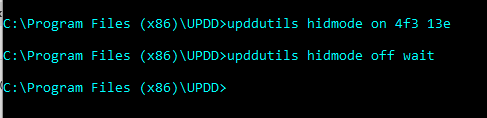
This is a Windows only function. The hidmode request must be executed with elevated privileges. For example in a command window started “as administrator". If running from a cmd window without admin right the utility will not be able to stop the UPDD process:  Some USB HID controller utilities require that HID be in control of the device to function correctly. This is especially true of any utilities used to update the firmware within the controller. This function is used to control UPDD access to the device. On = request UPDD to relinquish control of all devices such that the operating system will reinstall default drivers. Off = requests updd to reclaim all devices. Syntax upddutils hidmode on - causes updd to relinquish control of all devices. upddutils hidmode on vid pid upddutils hidmode off - causes updd to reclaim all devices. upddutils [device n] hidmode off wait The device waited for follows the standard rules for upddutils device selection; e.g.
|
| monitorbind - mb | Triggers the UPDD virtual HID device install and monitor identification and binding function. |
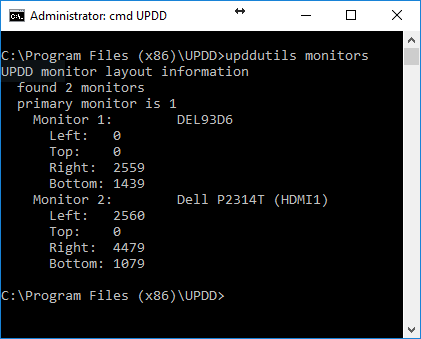
| monitors |
Shows system's monitor layout as seen by UPDD software. UPDD utilises QT monitor matrix in all OS to retrieve monitor layout information and for monitor handling. For successful UPDD multi-monitor operation the QT monitor properties must see either different monitor ids or co-ordinates. This option lists the monitor configuration as seen by UPDD, starting at Monitor 1. Under Windows it is possible that the monitor listing does not reflect the actual physical layout. This can be the case in a number of situations: |
| pnpinfo |
List the pnp (vid/pid) information associated with the supported USB controllers. upddutils list the "controller_matching" value. The controller_matching value is formed of 3 parts, separated by a semi-colon <vid_matching>;<vid_matching>;<interface_matching> Each of these can be expressed as a range; e.g 4f3-4ff or a list e.g 0,1. A list can in turn hold ranges, e.g. 4f3-4ff,555,600-602 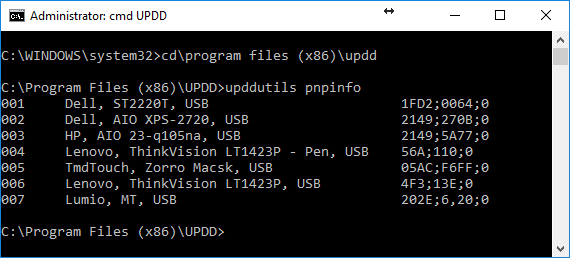 |
| playbackraw <fn> | For support purposes used to play back raw data from a file captured by the record raw command.
|
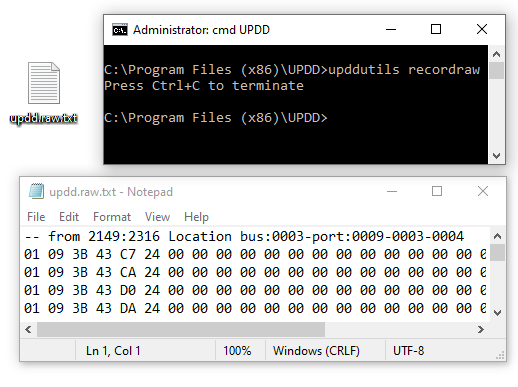
| recordraw | Captures all raw incoming touch data to a desktop file updd.raw.txt unless a full pathname is specified.
 |
| register |
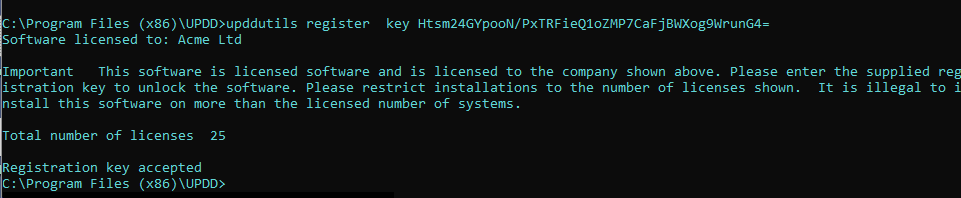
The UPDD driver is licensed software. An unlicensed driver will run in evaluation mode which comes with certain restrictions until it is licensed via a registration process.
The registration process is normally invoked from the UPDD daemon software. However, in cases whereby this is not available, such as a version of the driver that does not offer this functionality, then this option can be used to register the software. There are 3 ways to register a license as per these Windows examples. In macOS you use a Terminal window. Registering with a license key Claim a License Registering with a Registration key Registering with a specialist Key |
| reset | Reset settings to original values excluding reserved values such as registration, device binding internal (private.*) and device counts . |
| devtool from V7.1.197 |
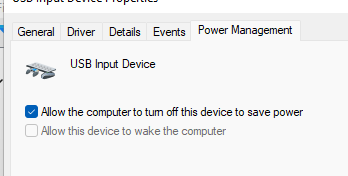
selectivesuspend This can be found in the Device Manager. Look for the HID-Compliant touch screen or USB input device entries under Human interface devices.
Usually the return to a normal state is so quick as to not be noticeable. However, in some cases the touch device does not recover resulting in total touch failure, or recovers after a period of time during which touch does not work (a customer reported 5 seconds). This might be due to a fault in the controller / Windows implementation of selective suspend. (we experienced a number of support calls mid 2025 caused by this setting whereby touch was working for a period of time then stopped working) Turning off the option above (if it is available) for the USB touch device has addressed this issue. In some cases there are more than one of these setting to locate in the Device Manager so we have added this function to adust this setting in Windows 10/11 systems (one customer reported this did not work on their system but it has worked OK on our test systems) Its not always clear which of the listed USB HID devices is the touchscreen as there might be many devices listed. To use this tool you will need to know the USB vendor and product id for the known touch device
upddutils devtool selectivesuspend ID off/on off disables the setting, on enables. ID should be the USB vendor vendor and product id of the device(s) in question. Example: To turn off selective suspend for a device with a vid of 424f and pid 9301 you would enter: upddutils devtool selectivesuspend 424f;9301 off In this case, two devices are found and disabled
|
| supported | Lists the pointer devices supported by the installed updd driver along with a device type id 'nnn'. The device type id shown relates to the devices configuration id as held in the UPDD settings file. 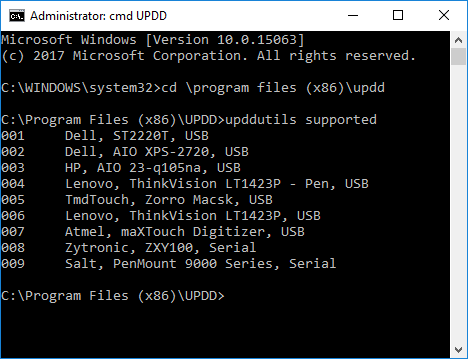 |
| unload | Instruct registered applications to terminate
|
| unregister |
To make an active licence available for reuse on another system you need to deactivate the license key on the current system. This can normally be performed up to 4 times in any 12 month period. Under MacOS and Linux you just need to type the command 'upddutils unregister' into their respective command windows. Under Microsoft Windows you have to run the command within the UPDD applications folder - UPDD V6 c:\Program files (x86)\updd; UPDD V7 c:\Program files\upddPrior to UPDD V6.0.361 you need to email the above information to support@touch-base.com requesting that the key be unlocked. e.g. upddutils unregister > unregister.txt and email the contents of the .txt file.
With UPDD V6.0.361 and above this function contacts the UPDD license server and unlocks the license key automatically for reuse. |
| usbdevices | If using UPDD V7 driver with HID devices use hiddevices instead of this command. Lists all discovered usb devices connected to the system (as per this Windows example) 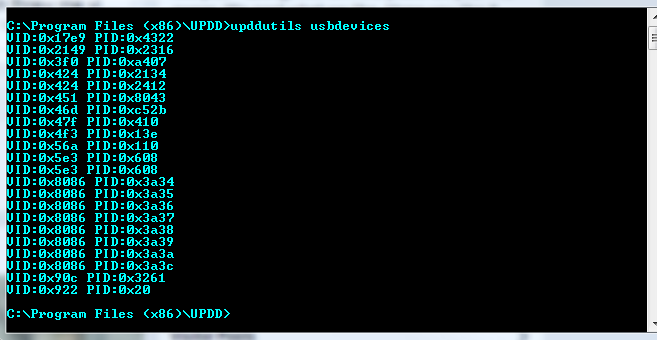 |
| V5-V6 <fn> | Port V5 calibration data to V6 installation. Using a copy of a tbupdd.ini file that contains the V5 calibration data for a given set of devices you install UPDD V6 and wait for all connected devices to be ready run the command: upddutils v5-v6 <fn> where <fn> is the path to the saved ini file. This will copy across all calibration and binding information for devices that match USB vendor and product id. This command is intended for systems that are being upgraded from v5 to V6 that have the same touch device hardware configuration and that are likely being upgraded from some form of automated script that copies the .ini file, uninstalls v5, installs v6 then runs this command. Please note that due to the difference in screen derivation in v5 / 6 we have had to make some assumptions and these in turn depend on the target hardware configuration so we can not confirm this will work 100% If the configuration you have does not work as expected then please send us a copy of tbupdd.ini from v5 and updd.db from v6. |
| version | Returns the driver version and build number. A=Alpha, B= Beta, R = Release build.  |