Introduction
Answering Commander queries relies on a basic understanding of how Commander gesture and actions are defined, and below is an attempt to introduce the basic concepts.
macOS does not natively support touch screens and therefore the desktop and applications have not necessarily been designed to interact with touch, but indirectly via mice and trackpads.
On macOS these devices allow for click and gestures, that are performed relative to the position of the cursor. A global set of gestures and actions are available as described here.
UPDD Commander allows these clicks and gestures to be performed directly on the desktop when using a touch screen.
Although Commander offers the same set of default global macOS gestures, Commander also allows for gestures and actions to be related to a specific application and also within the UI elements used in the construction of application dialog.
The Commander settings dialog shows the Default gesture set along with application gesture sets, both of which can be updated as required.
Each application level entry inherits the default set of application UI elements (standard ones that are often used in the construction of an application dialog).
Therefore, when performing a single or multi-touch gesture on the desktop or within an application, the gesture/action selected could be that defined in the Default gesture set (if the application is not defined in the application list), at the Application level or at the lower UI element level.
When making changes to the gesture and action sets, you should be aware that changes to the default set will be used by all applications not specifically listed, and by listed applications that utilise the inherited gestures without change.
Specific gesture/actions application requirements are often best catered for by adding an application and making gesture/action changes at the application-level. You should think twice before changing the Default gestures.
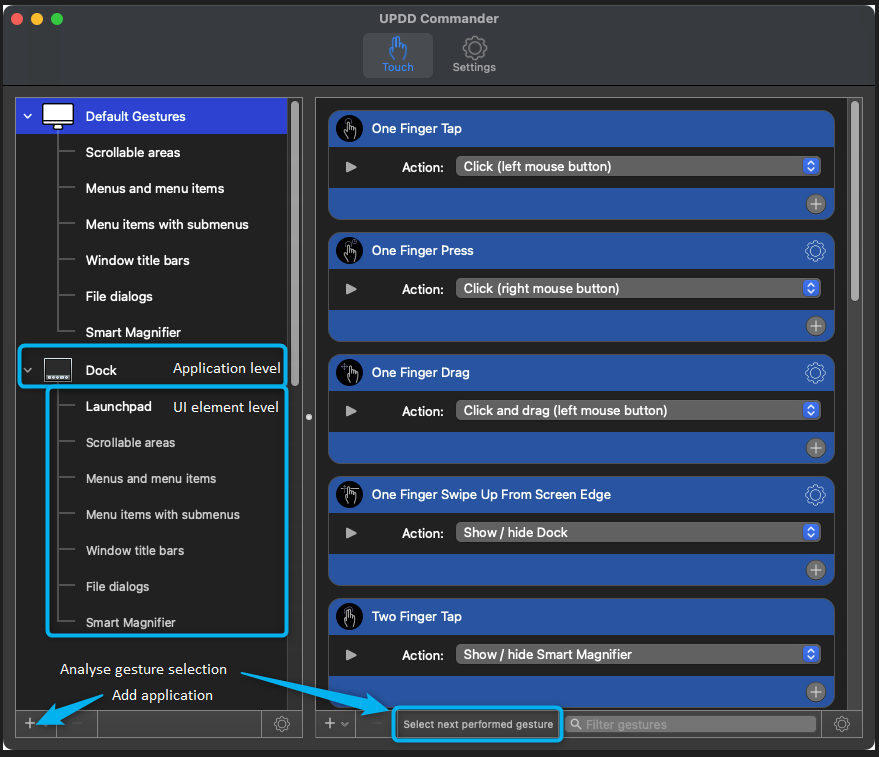
Given the layering of gestures and actions, it is not always obvious what gesture is being selected and to aid understanding of the selection process a gesture analyse feature is built into the Commander dialog, as shown below.
Hopefully all the above is clarified by this annotated image that shows:
- Default Gestures entry and UI elements
- A specific application entry for the system Dock that has added another UI element called LaunchPad
- How to invoke the gesture analysis feature
- How to add an application in the Application List
Full Commander documentation is available here.