Big Sur security
Prior to creating the new codeless kext these were the instructions to install the old kext on Silicon M1 systems.
With Apple Silicon system you may have to enable kernel extensions usage as follows:
1. Enter the macOS Recovery environment by following the directions in "Start up your computer in macOS Recovery":
2. In the menu bar, pick the menu Utilities > Startup Security Utility
3. Select your system and click "Security Policy"
4. Click the button for "Reduced Security"
5. Check the box next to "Allow user management of kernel extensions from identified developers"
6. Click OK and enter your administrator password when requested
7. Reboot your system (only after the UPDD installation has completed. The reboot will likely be blocked if the install app is still running)
You must retain the 'Reduced Security' security level for the kernel extension to load in ARM processors.
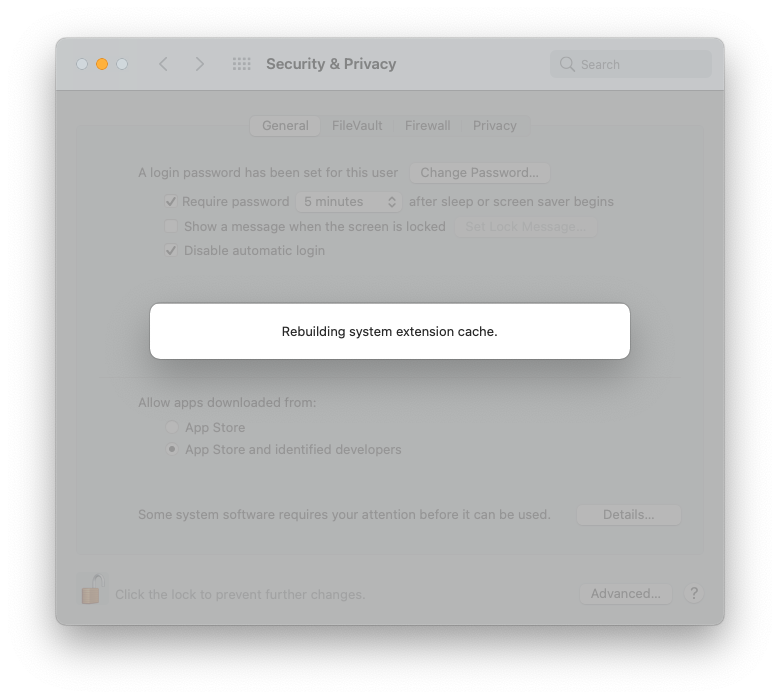
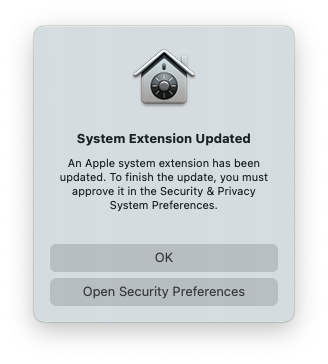
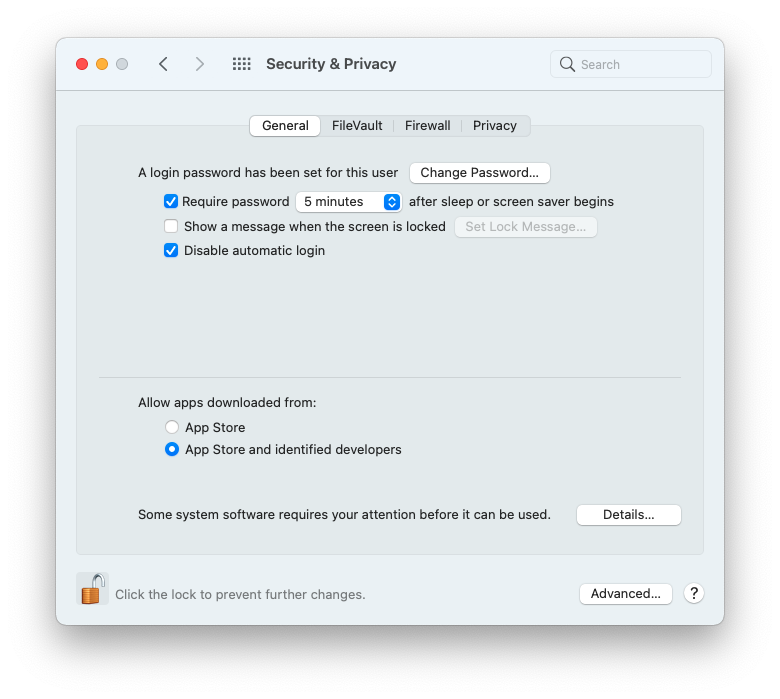
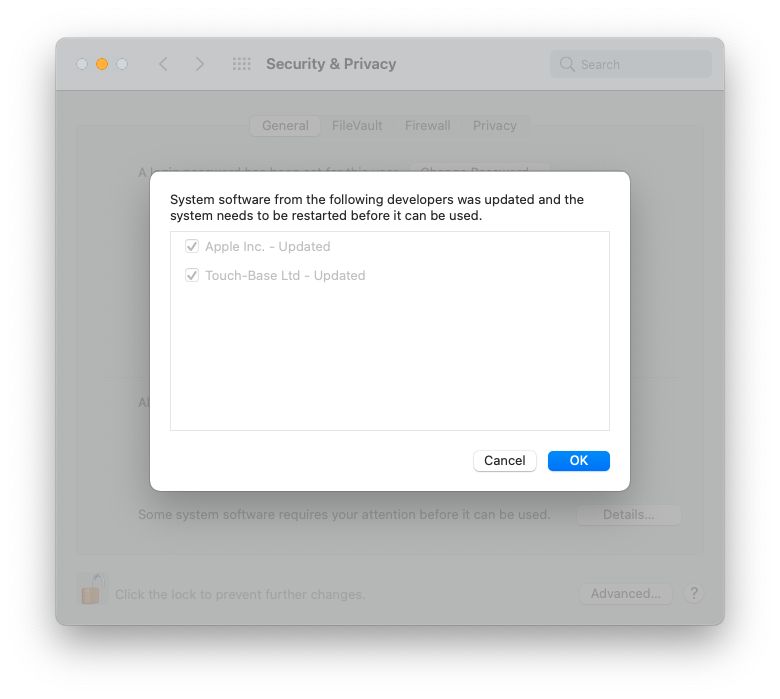
With that done, you can install the driver as documented although there's a few steps that are different compared to installing on Intel macs as shown in the screenshots below:
Step1: The new dialog approving the system extension update.
Step2: The new Security & Privacy dialog. Note that the text on the bottom now reads" Some system software requires your attention before it can be used." Select "Details"
Step3: This is what appears after clicking the "Details..." button in the previous step. We are not sure why "Apple Inc" is listed as well but it seems to do no harm. Select OK to approve the updates.
Step4: After clicking OK in the previous step, this dialog appears.
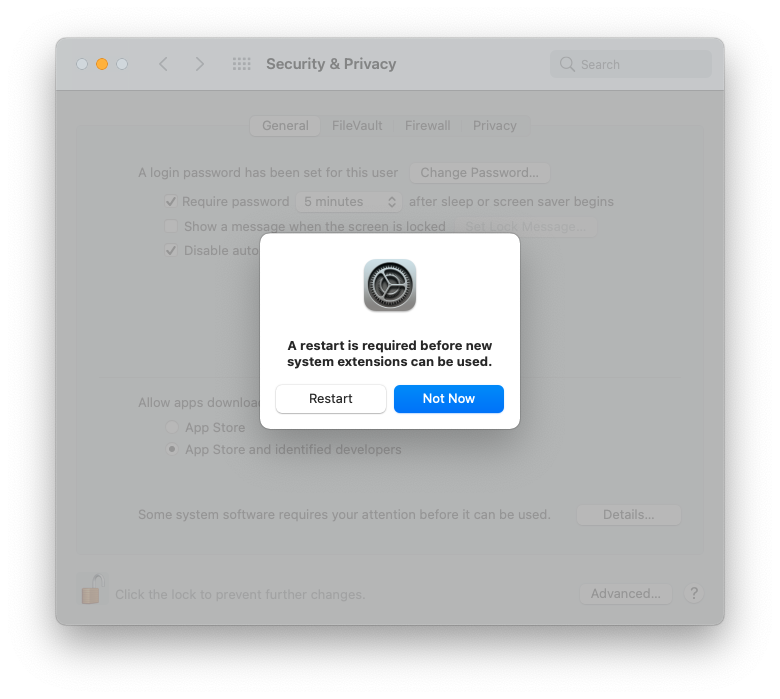
Step5: After clicking "Restart", this window appears and takes several seconds to complete, at which point the system reboots and the driver is able to load.